Inside the PB Restaurant Import Engine
A kitchen full of ideas, a screen full of code.
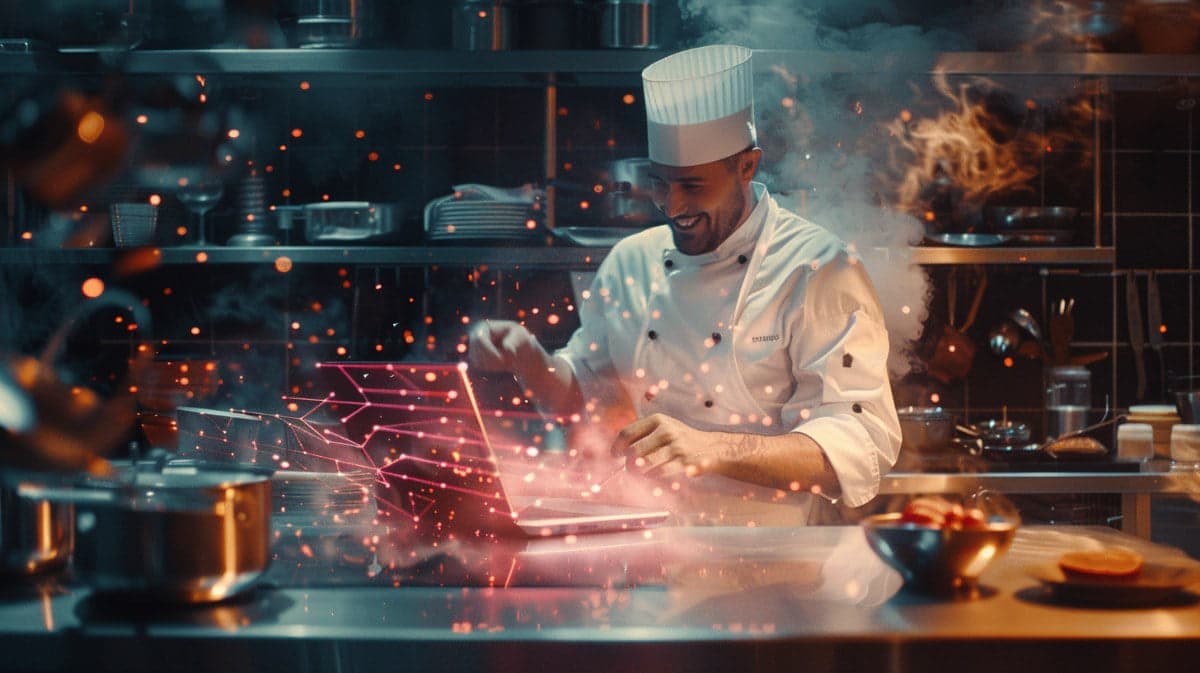
Figure 01.0 — Inside the PB Restaurant Import Engine

How We Built the PB Restaurant Import Engine
As you may know:
when I find myself doing the same work repeatedly, something clicks in my mind.
I think:
surely, there must be a better way?
And usually, two things happen.
I start thinking about it
I also immediately start building it
I find it hard to continue doing work that I know can be done more intelligently.
Last night, I was on pb.nl/recepten entering a few restaurants as a pastime.
Adding addresses, phone numbers, opening hours, taking screenshots, generating JSON, pasting into the CMS…
But after a few restaurants, I suddenly thought:
Surely, we can't keep doing it this way.
If we want to have hundreds of restaurants in the future, this needs to change.
So today, we decided:
okay — let's build this properly.
Together with ChatGPT and Claude, we set up a system that can find and prepare restaurants for the site on its own.
First, This
Important to mention:
We do NOT rip information from other sites.
We use restaurant lists only as a starting point to discover restaurants.
Think of guides such as:
Michelin
Lekker500
Gault&Millau
These are simply lists of restaurants.
We use them to see which restaurants exist.
Then we build our own pages.
With our own texts, structure, and presentation.
The goal is to create a beautiful, clear restaurant guide on pb.nl/recepten that complements our recipes and food inspiration.
How the System Works
The new workflow essentially consists of three steps.
And here is the plan restaurant_auto_import_plan (PDF) for those interested in what chat, claude and I have devised and built.
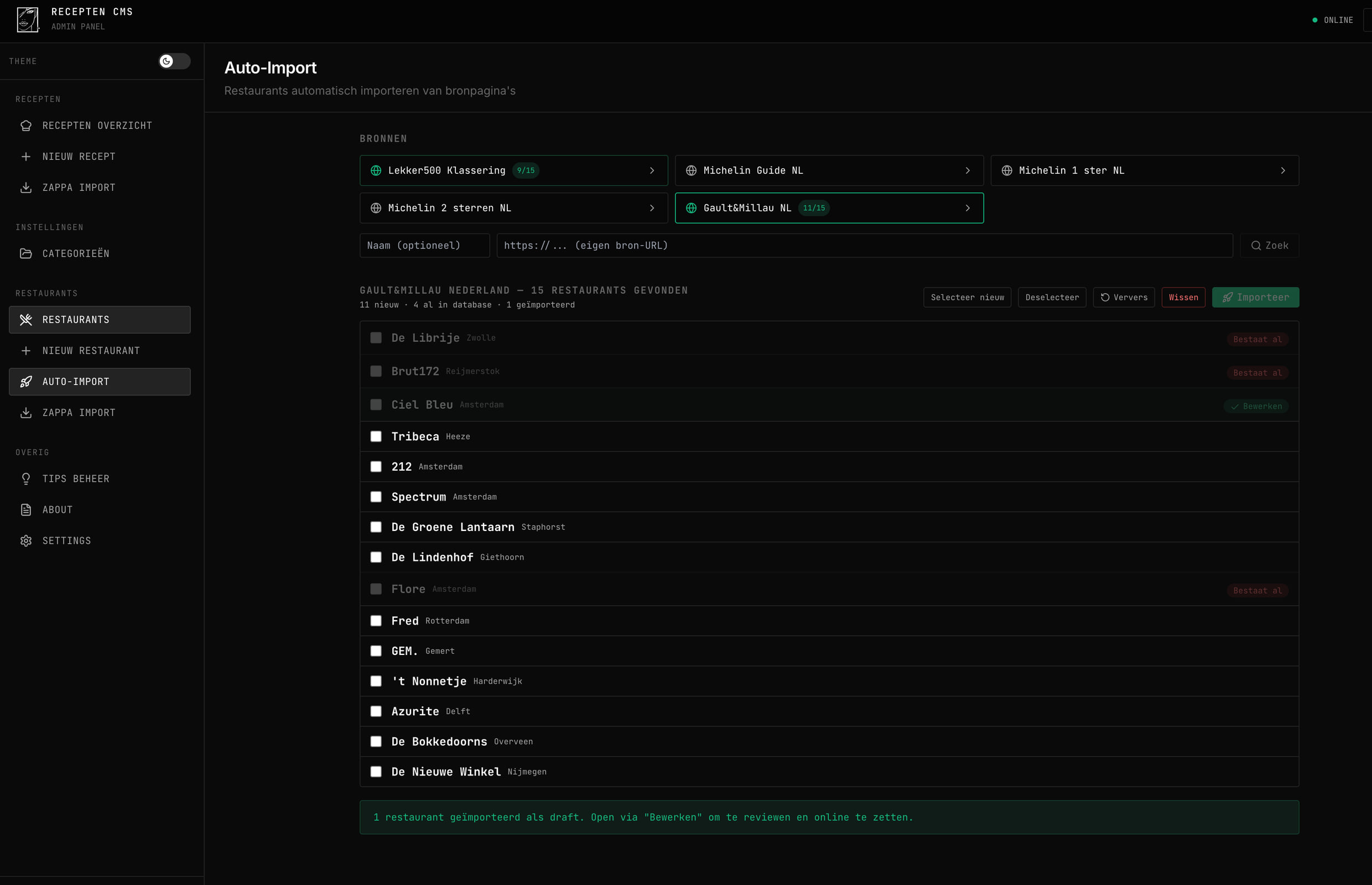
1 — Discovering Restaurants
The system reads a restaurant list and extracts only the names of restaurants.
No more.
For example:
Michelin → list of restaurants → collect names.
2 — Gathering Facts
Then the system searches for basic information such as:
address
phone
opening hours
reservation link
website
This is done through three sources simultaneously:
the restaurant's website
the guide page
Google business information
Important:
information is never fabricated.
If something is unclear, it remains blank.
3 — Creating the Restaurant Page
Only then is the page for our site constructed.
The system creates an initial version of:
an introduction
SEO text
tags
cuisine type
Additionally, it automatically:
retrieves a hero image
generates an English version
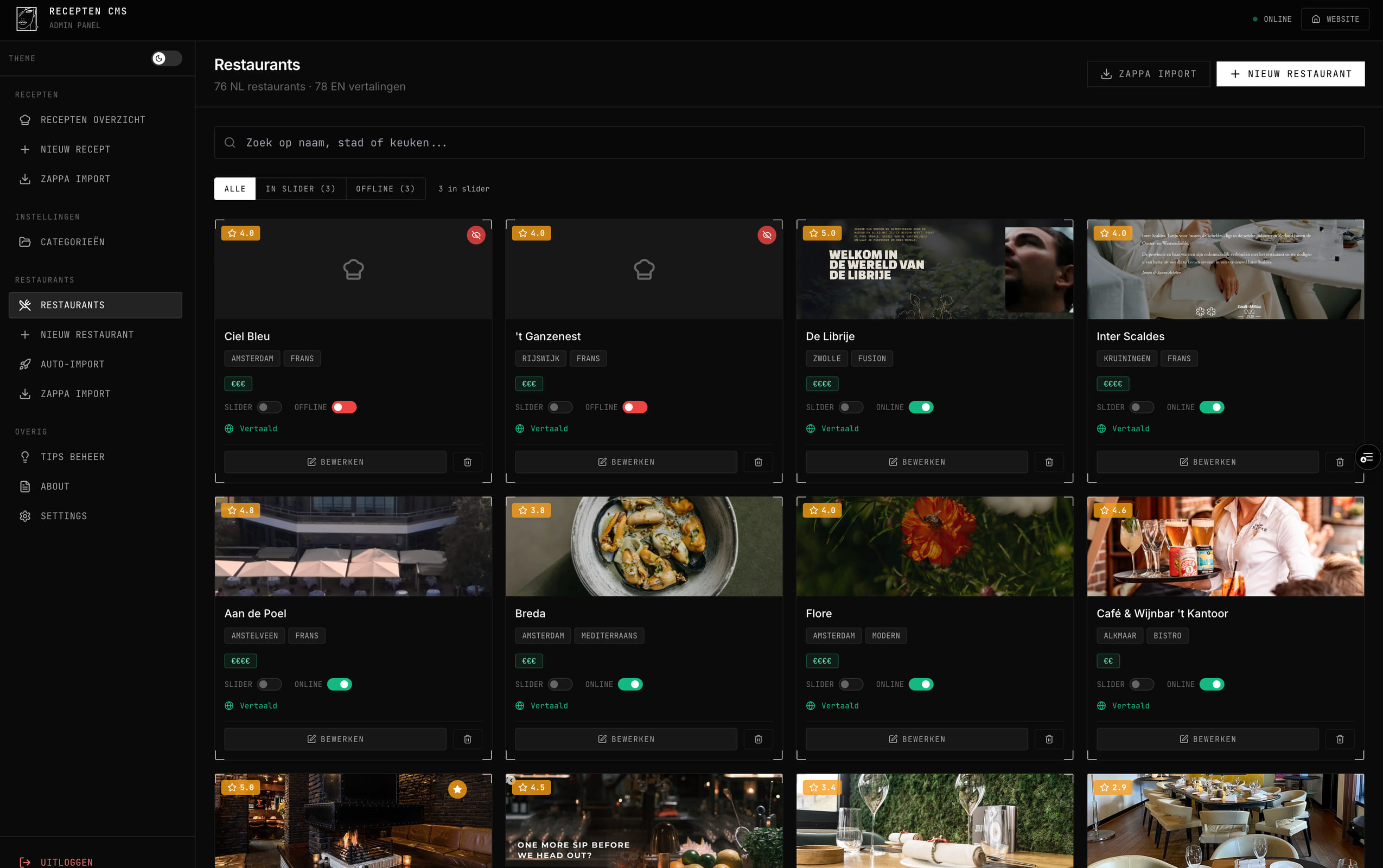
But everything first appears as a draft in the CMS.
We always perform a final check before anything goes live.
There is therefore always a human check involved.
The Difference
Previously:
approximately 15 minutes of work per restaurant
Now:
approximately 30 seconds
Click on source →
select restaurants →
import →
check →
publish.
Why This Is Important to Us
This is exactly the type of system that excites us.
Not because it is so complex,
but because it allows us to build the site faster.
Instead of losing time to manual labour, we can focus on:
selecting quality restaurants
improving the pages
and growing the site.
Where This Is Heading
For now, this is part of pb.nl/recepten.
But honestly, we are already thinking further.
Slowly, something is emerging here that could eventually grow into a luxury food & restaurant platform.
We will share more about that later.
For Today
Today, it feels like a very significant step.
An idea we had for a while
has suddenly become a system that truly works.
And that is perhaps the most enjoyable part of building.
That moment when you think:
yes… this is really going to help us.
by
Peet
yes, and then I thought I should attach a screenshot to each restaurant.....ugh! but yes, copyright images. so I asked claude and 1m 59s later:
hahahahah BAM!
⏺ Chrome extension is ready! Here's how to install it:
1. Open chrome://extensions/ in Chrome
2. Enable Developer mode (top right)
3. Click Load unpacked
4. Select the folder Projects/Recepten.pb.nl/chrome-extension/
Usage:
1. Open the restaurant website in tab 1
2. Open the CMS edit page of that restaurant in tab 2
3. Click on the PB icon in your Chrome toolbar (on tab 1)
4. Choose Image 1 or Image 2
5. Click Screenshot → Upload
6. Screenshot is taken → compressed → uploaded to R2 → automatically placed in the CMS
form
No need to save/download/upload — one click does it all!
✻ Cogitated for 1m 59s